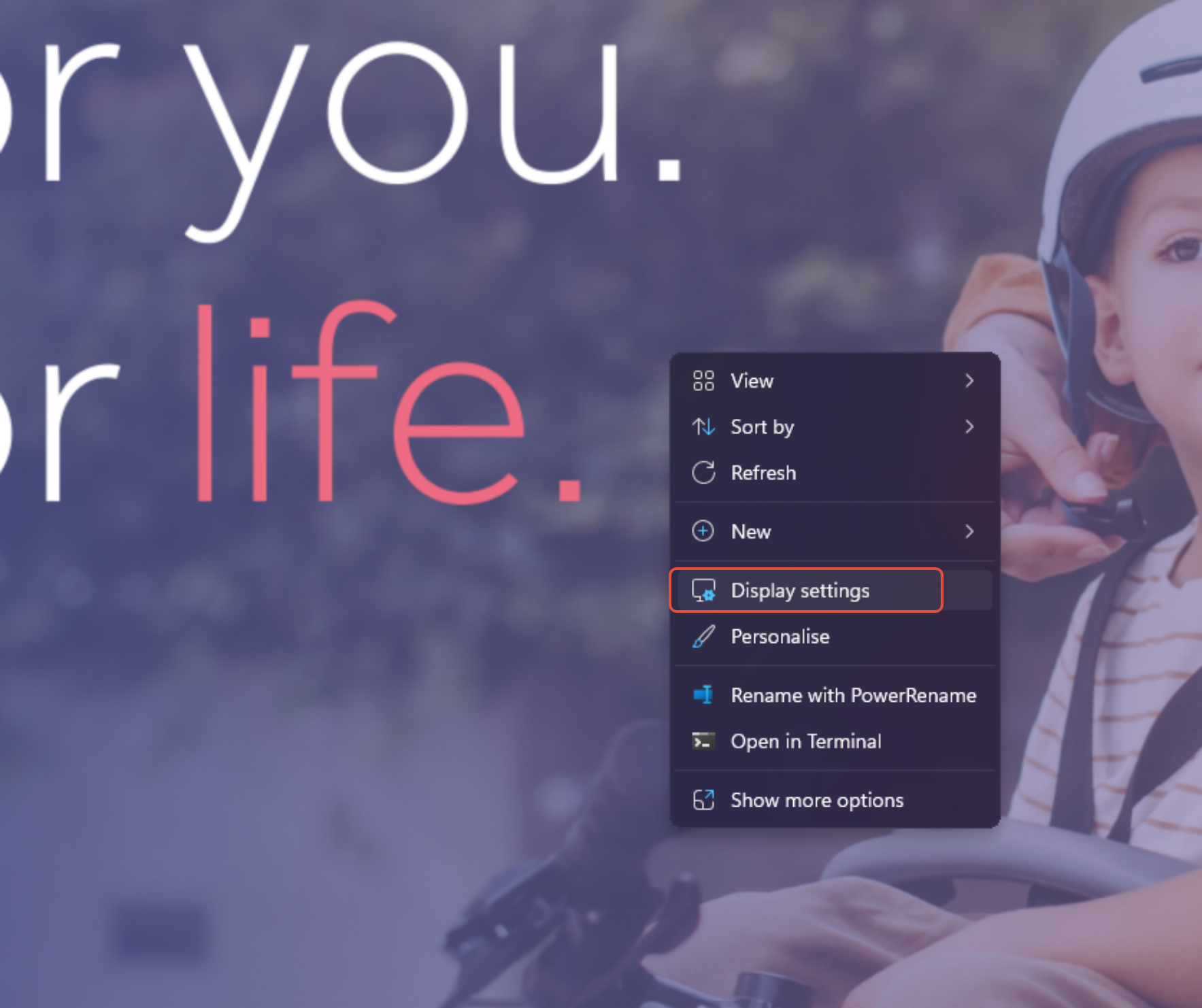
Outside of ETI, right-click a blank space on the desktop background and select Display Settings:
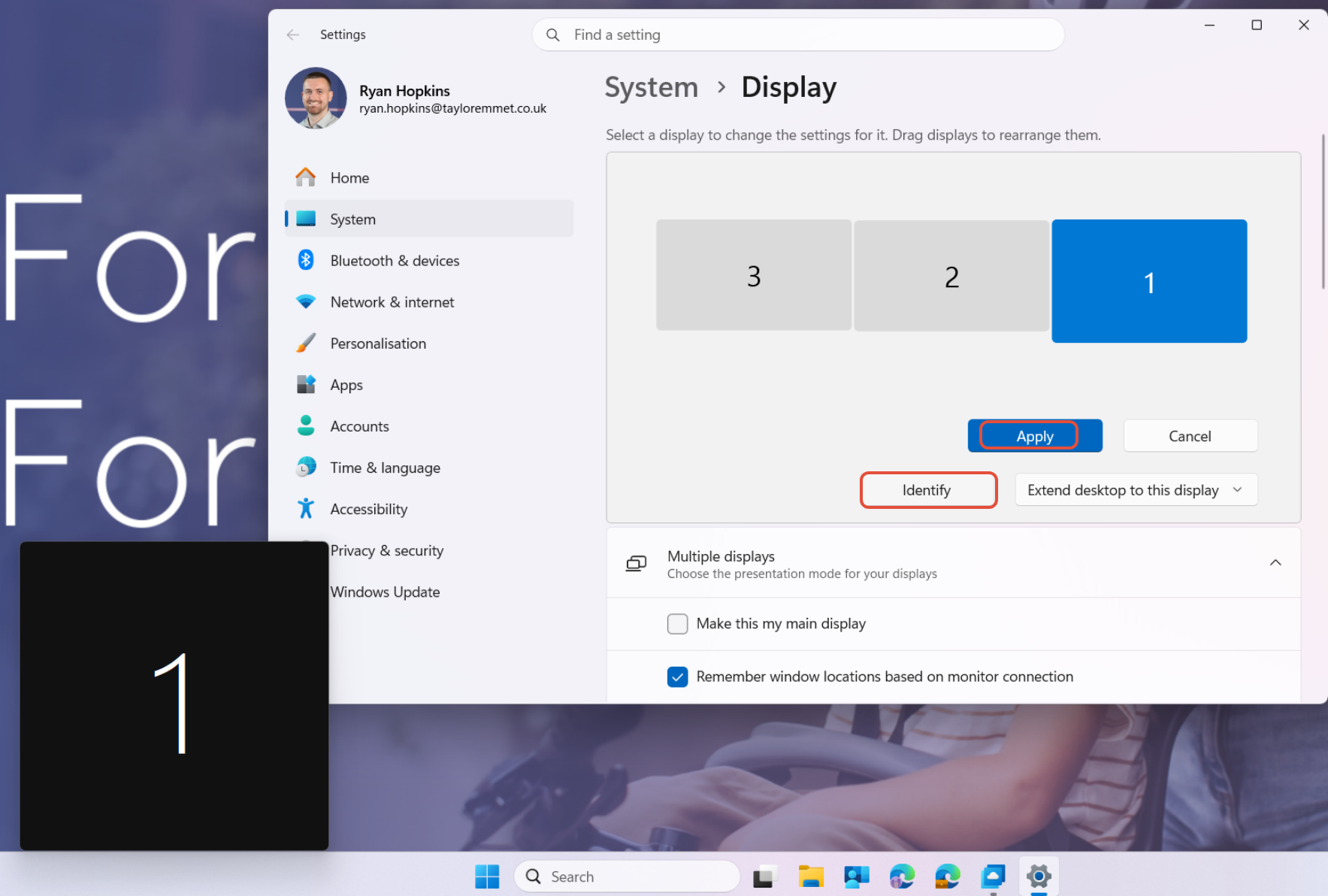
Click Identify and the corresponding number will appear on each screen. You can then drag them into the correct order to match how they appear in front of you, then click Apply:
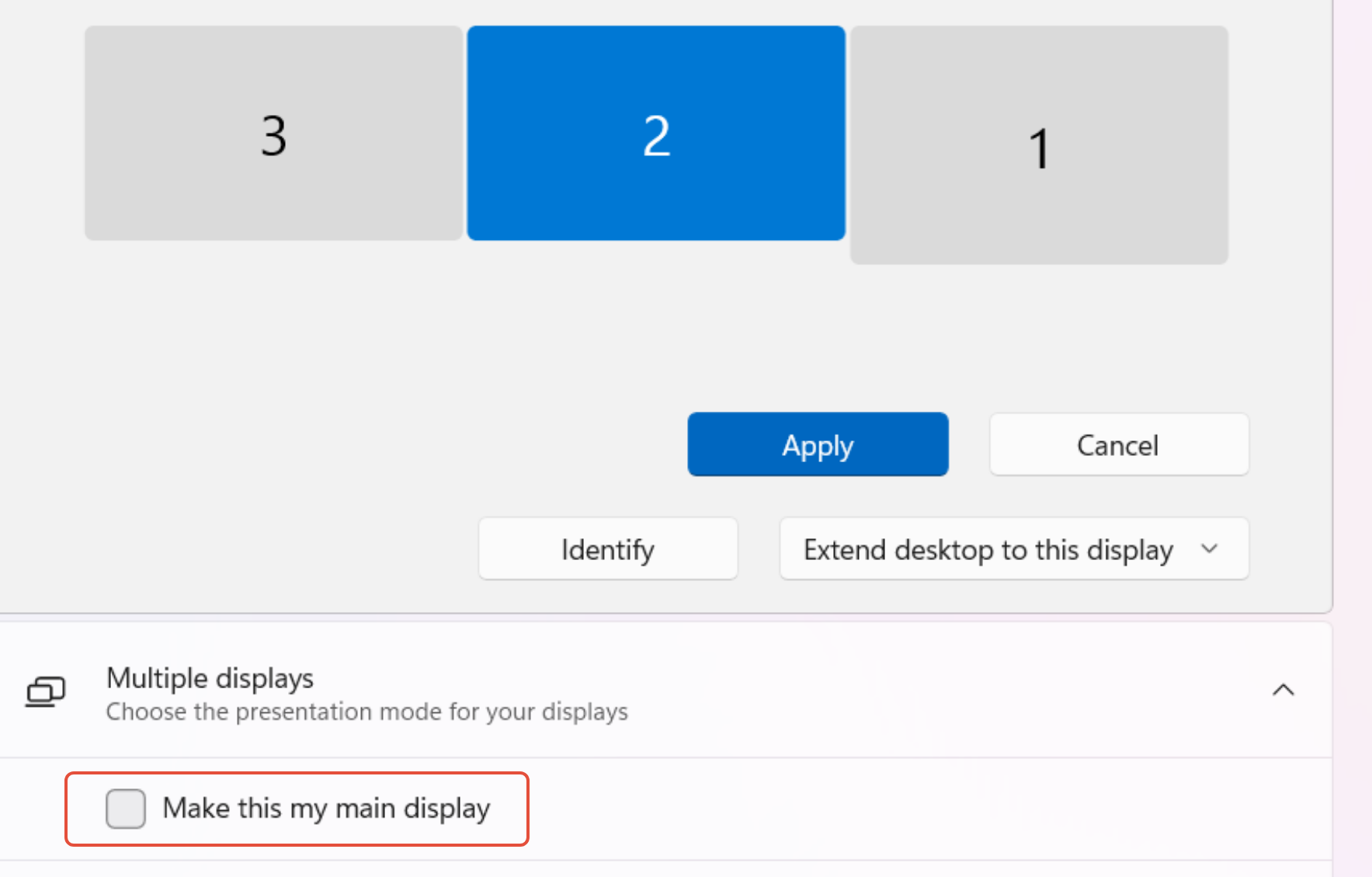
Make sure one of your external monitors is set as the main display — this is important as scaling issues can occur in Mattersphere if the laptop screen is set as the main display. Select a monitor of your choice, expand Multiple displays and tick Make this my main display:
Once done, log back into ETI. If it was running while you made these changes you may need to close and reopen any applications for the new settings to apply correctly.
Was this article helpful?
That’s Great!
Thank you for your feedback
Sorry! We couldn't be helpful
Thank you for your feedback
Feedback sent
We appreciate your effort and will try to fix the article