7-Zip is our file archiver used to compress, decompress, and encrypt files, significantly reducing file sizes. Customers might refer to another software known as "WinRAR" or "WinZip" but they perform the same function.
Most use cases for 7-Zip can be accomplished through your file explorer.
TABLE OF CONTENTS
- Use Case 1: Extracting .zip / .7z Files
- Use Case 2: Compressing a File To Send
- Use Case 3: Password Protecting a Zip Folder
Use Case 1: Extracting .zip / .7z Files
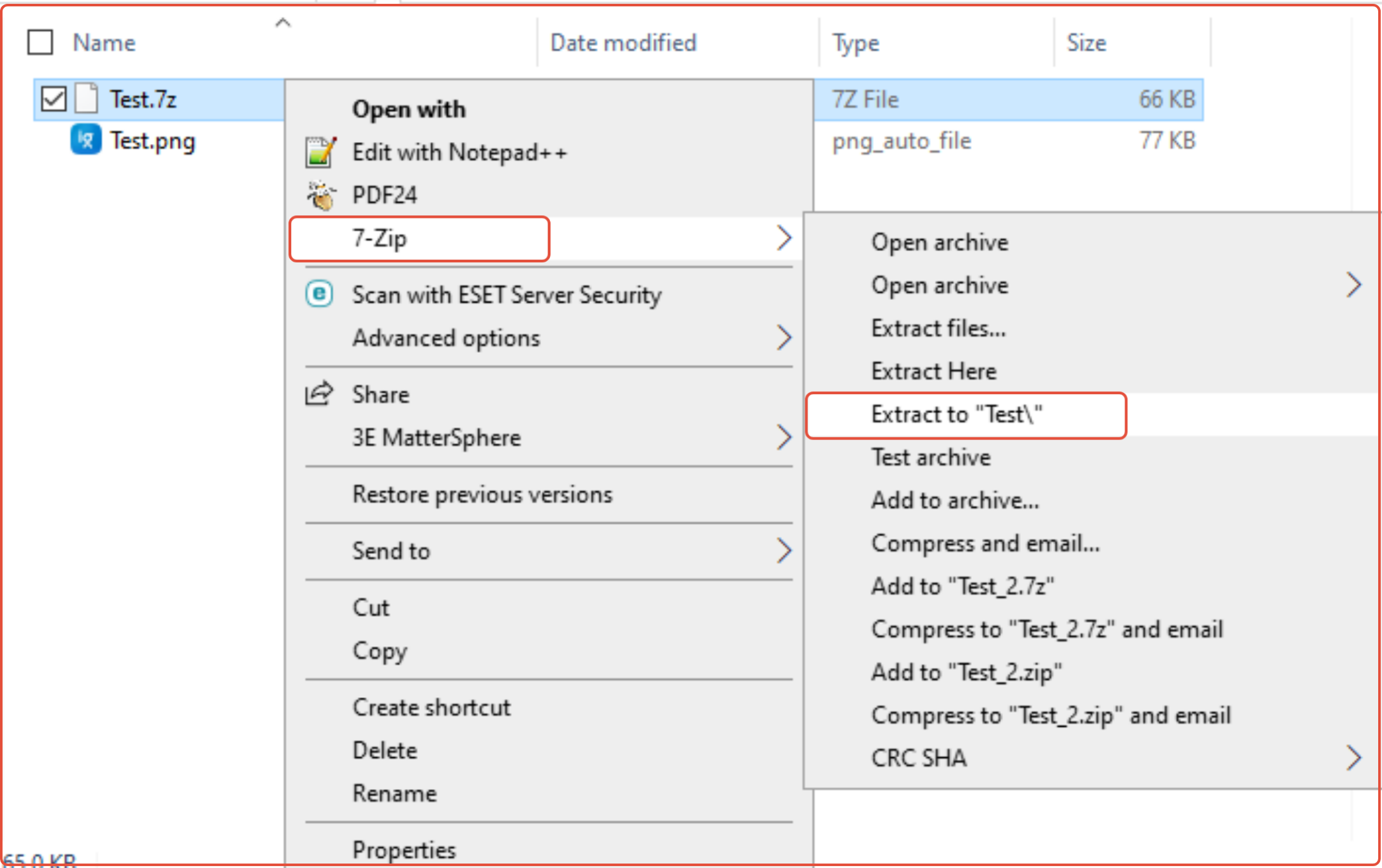
To extract a .zip / .7z file using 7-Zip please right click on the file and go to 7-Zip > Extract to "filename\" This will create a standard folder with the de-compressed file/folder inside.
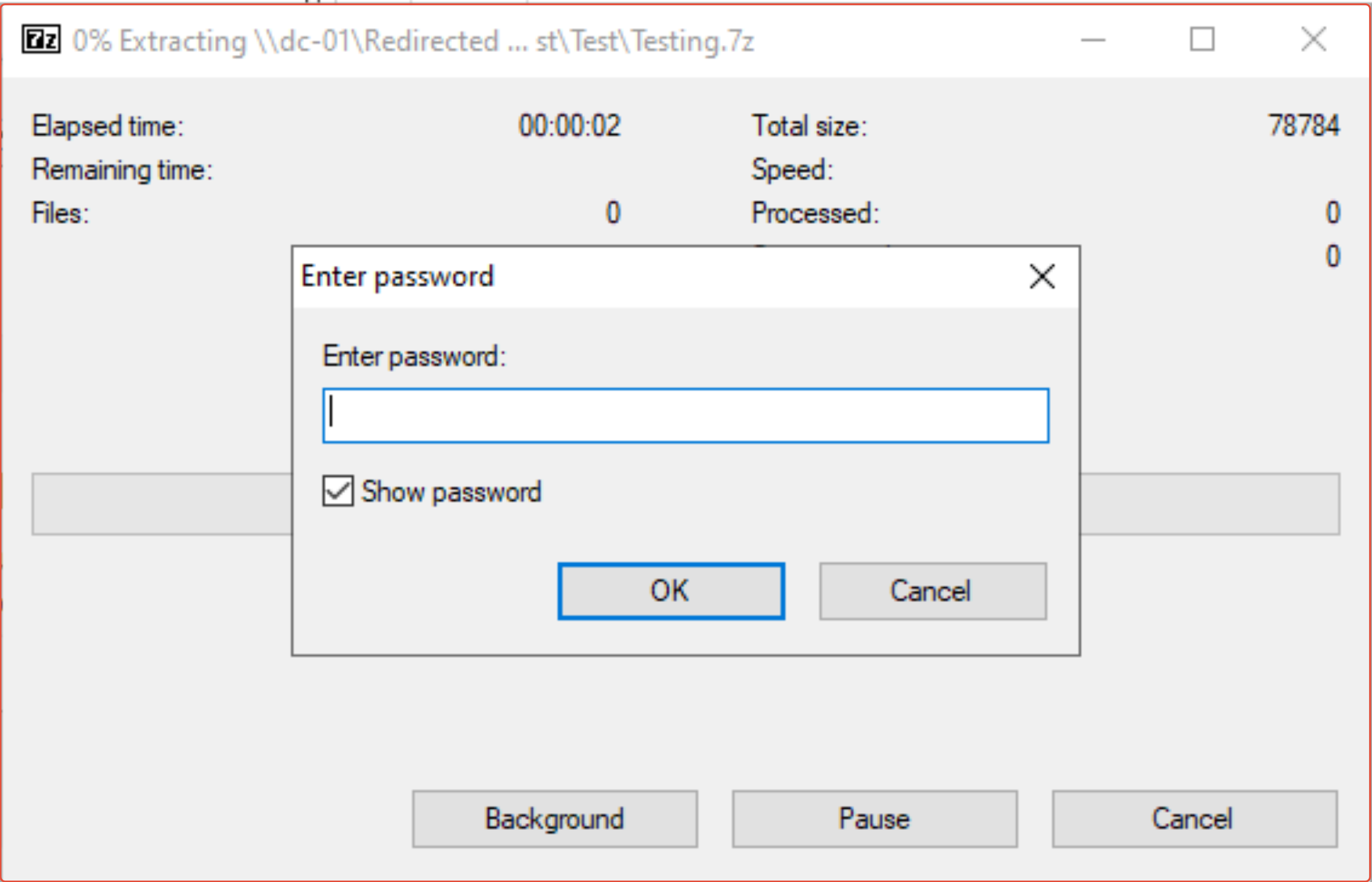
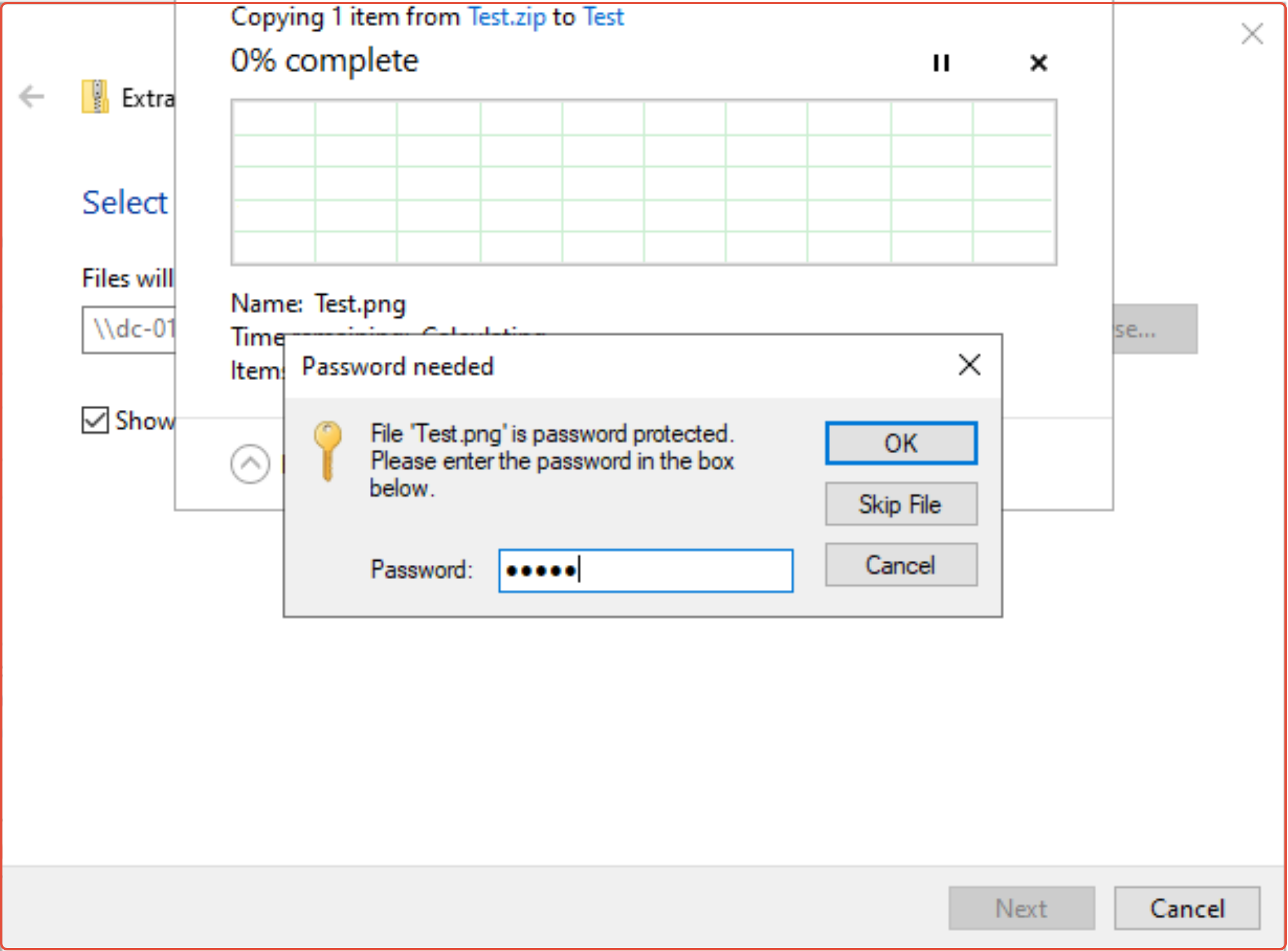
If the file is password protected, 7-Zip will prompt you to enter one. Once the extraction has completed, check the folder and it will be ready to access.
Use Case 2: Compressing a File To Send
If you just want a quick way to compress a file, follow below.
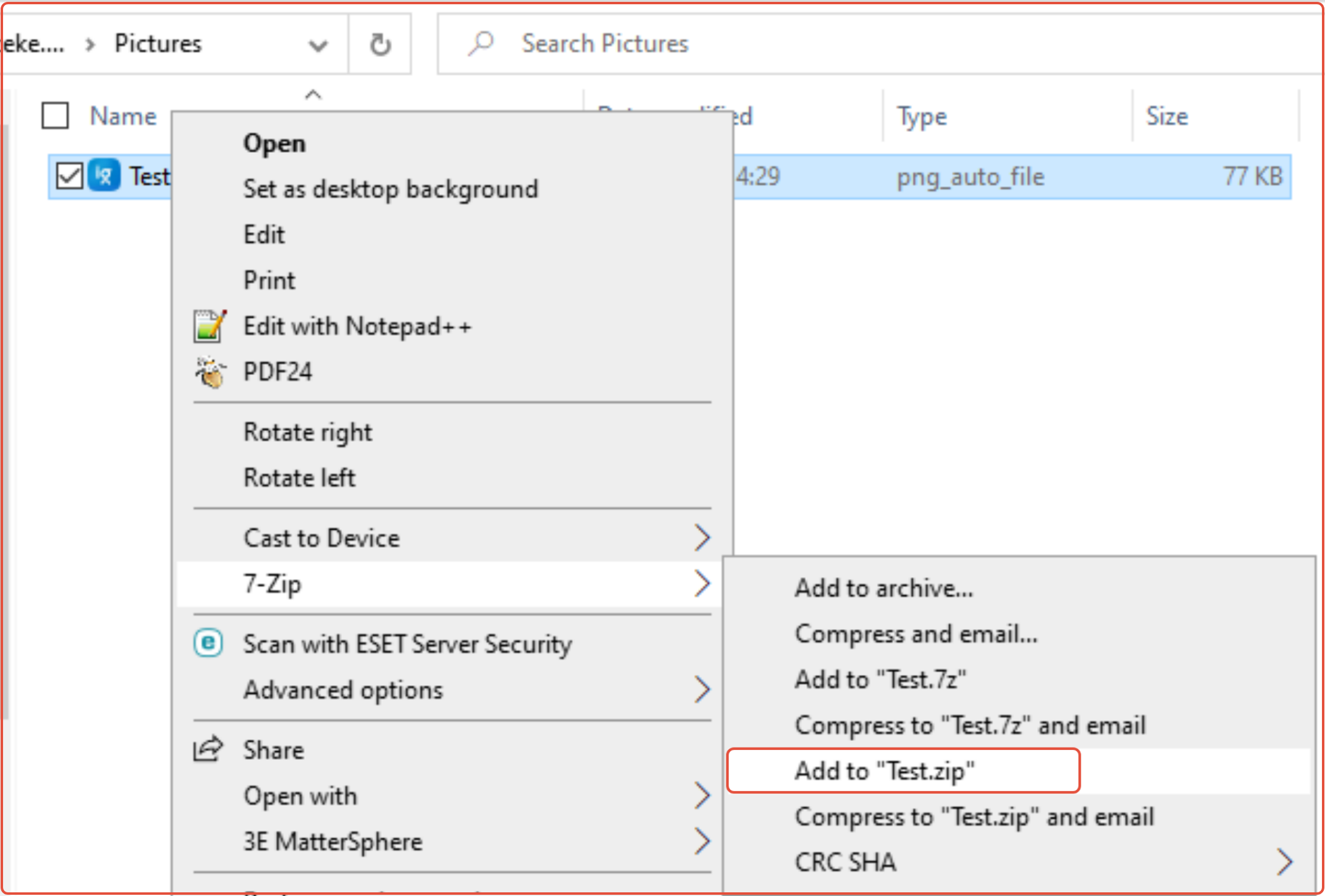
Select all files you'd like to use, Right click and go to 7-Zip
Choose "add to filename.zip" which will create a zip folder in the current directory.
Depending on the file and its content, you may see a reduction in file size as seen here:

Main Categories of Poorly Compressible Files:
Video: MP4, AVI, DIVX, MKV, MOV.
Audio: MP3, AAC, FLAC, WMA.
Images: JPEG, PNG, GIF, HEIC.
Use Case 3: Password Protecting a Zip Folder
If you would like to Zip up a document or folder but would like to also password protect it, you can do so by right clicking and going to 7Zip > Add to archive.
This will open a window where you can edit the zip properties.
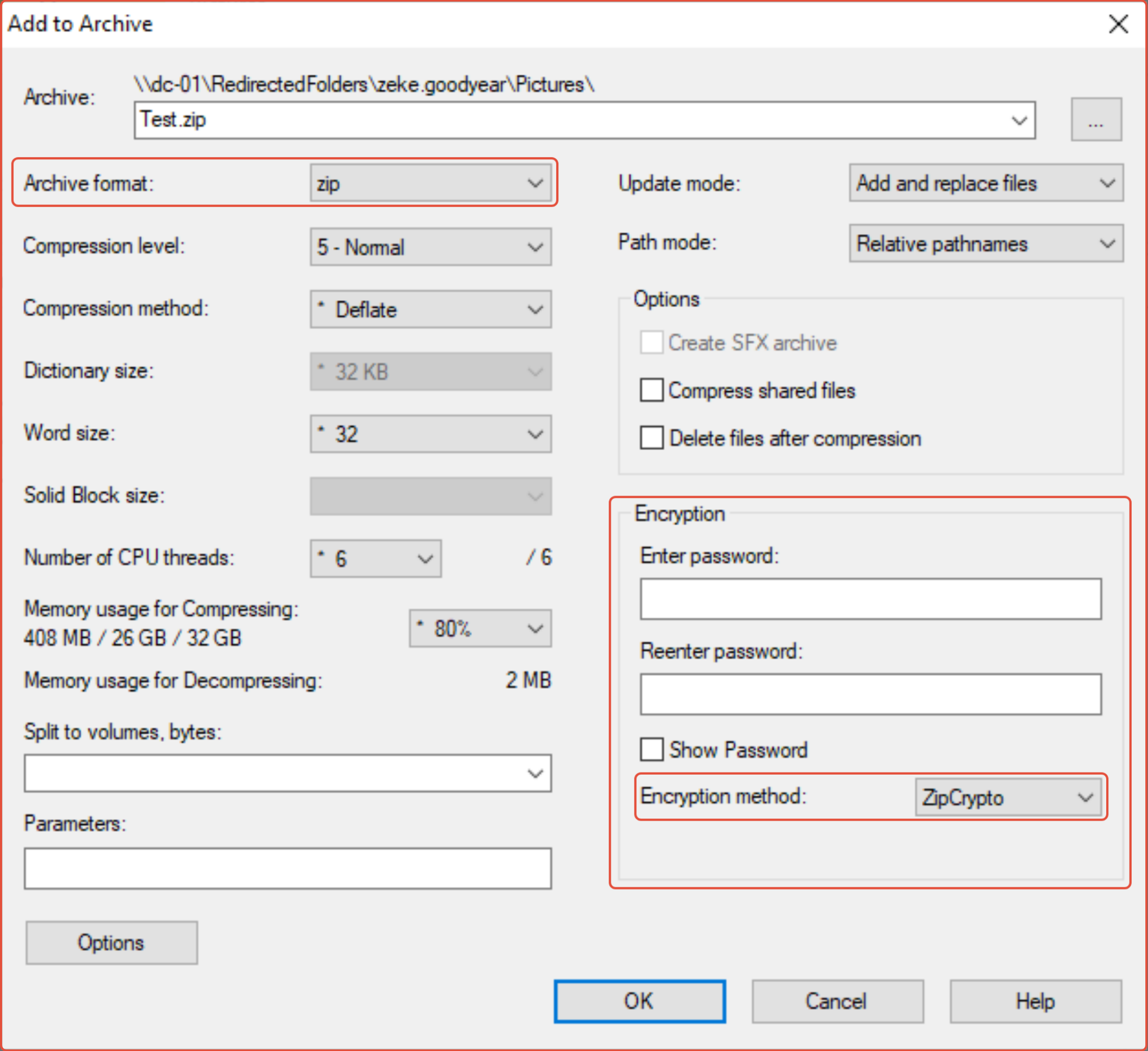
Here we have the ability to modify several settings.
For instance, you can change the format displayed under the file name at the top to a few different options; use ".7z" if you know that the recipient has 7-Zip, but if you’re unsure, opt for ".Zip".
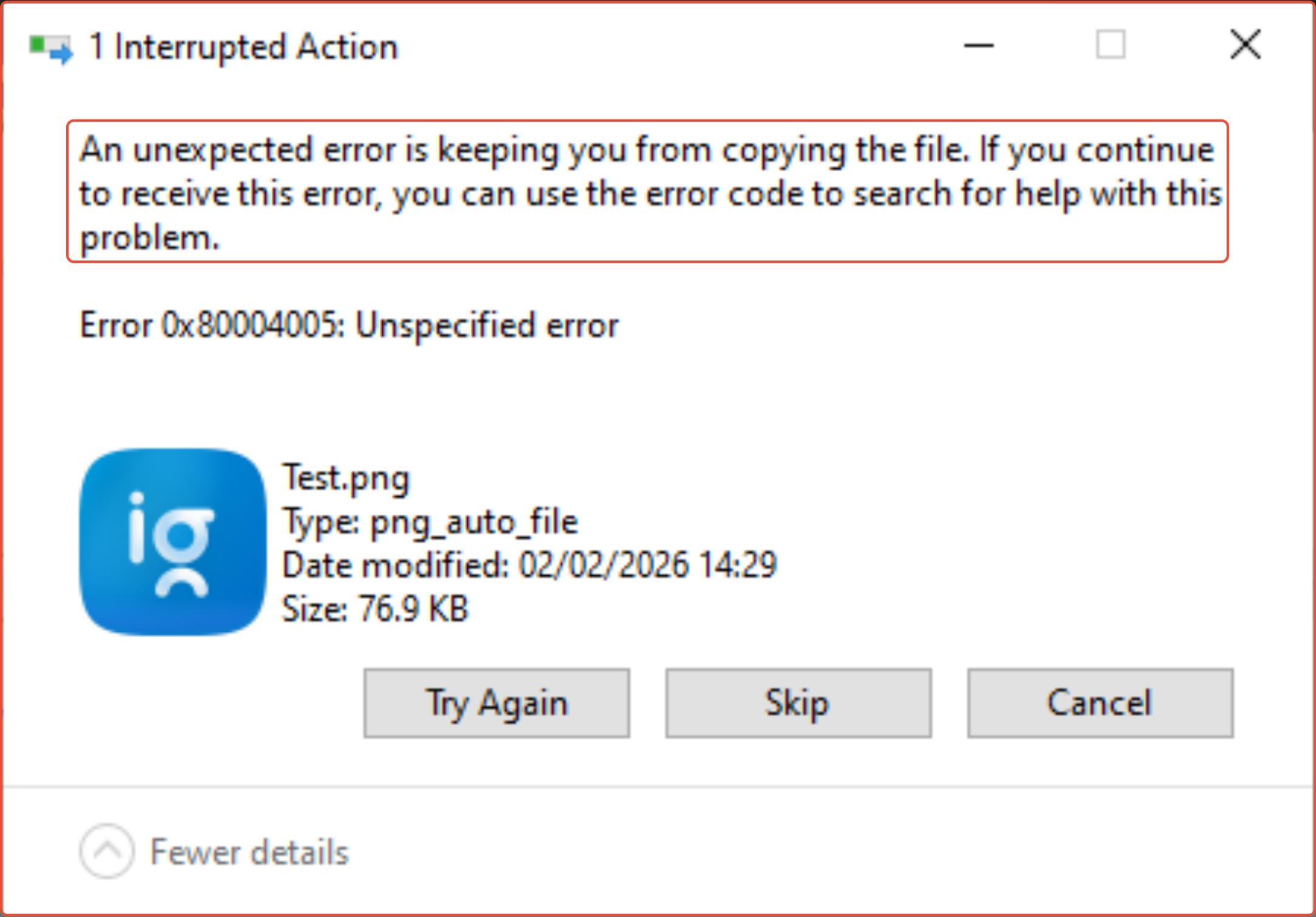
In the encryption tab, you can input a password. Please be aware: "ZipCrypto" encryption is the default for Windows, and while it is not as secure as AES-256, the latter requires the receiver to have 7-Zip installed for file extraction.
Attempting to extract a file using the Windows Extract tab with AES-256 will result in an error as shown below:
Once you are satisfied with the changes, click Okay, and the zip file will be generated. You can test this by right-clicking and extracting it first, making sure it prompts for the password and operates smoothly.
ZG - IT Helpdesk 03/2026
Was this article helpful?
That’s Great!
Thank you for your feedback
Sorry! We couldn't be helpful
Thank you for your feedback
Feedback sent
We appreciate your effort and will try to fix the article