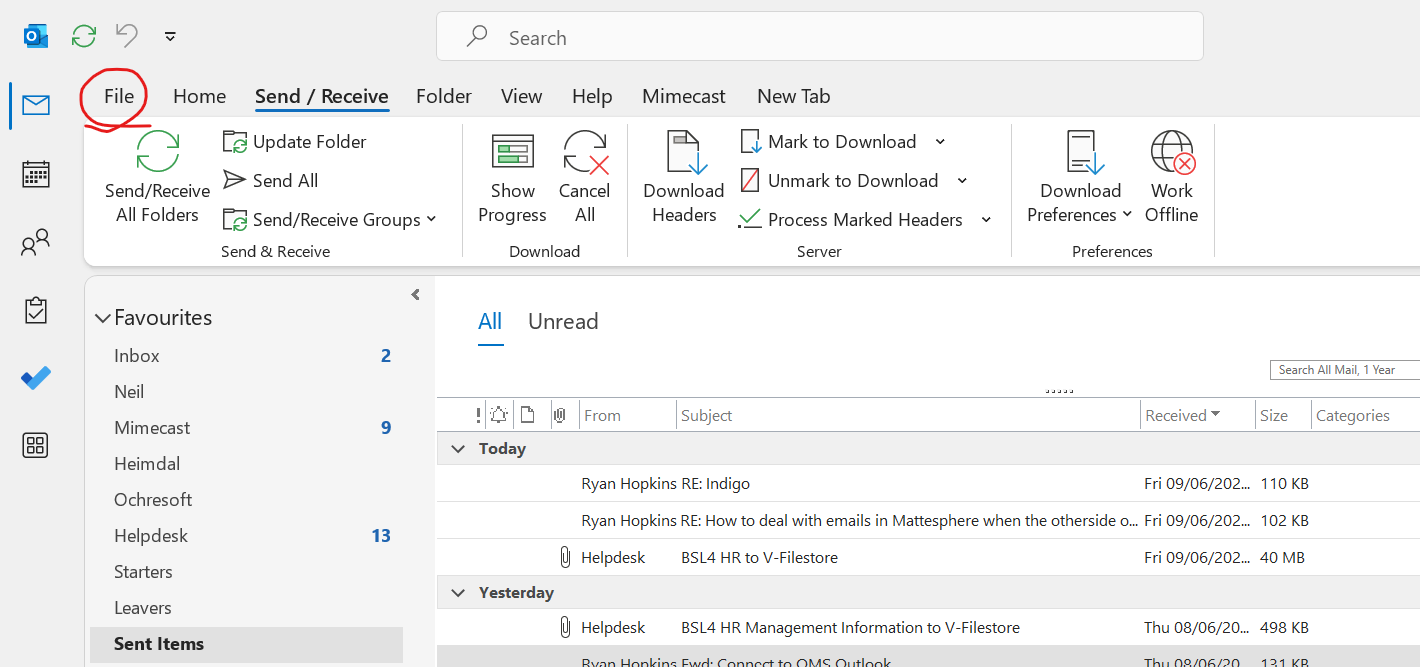
Click File in the top left of Outlook:
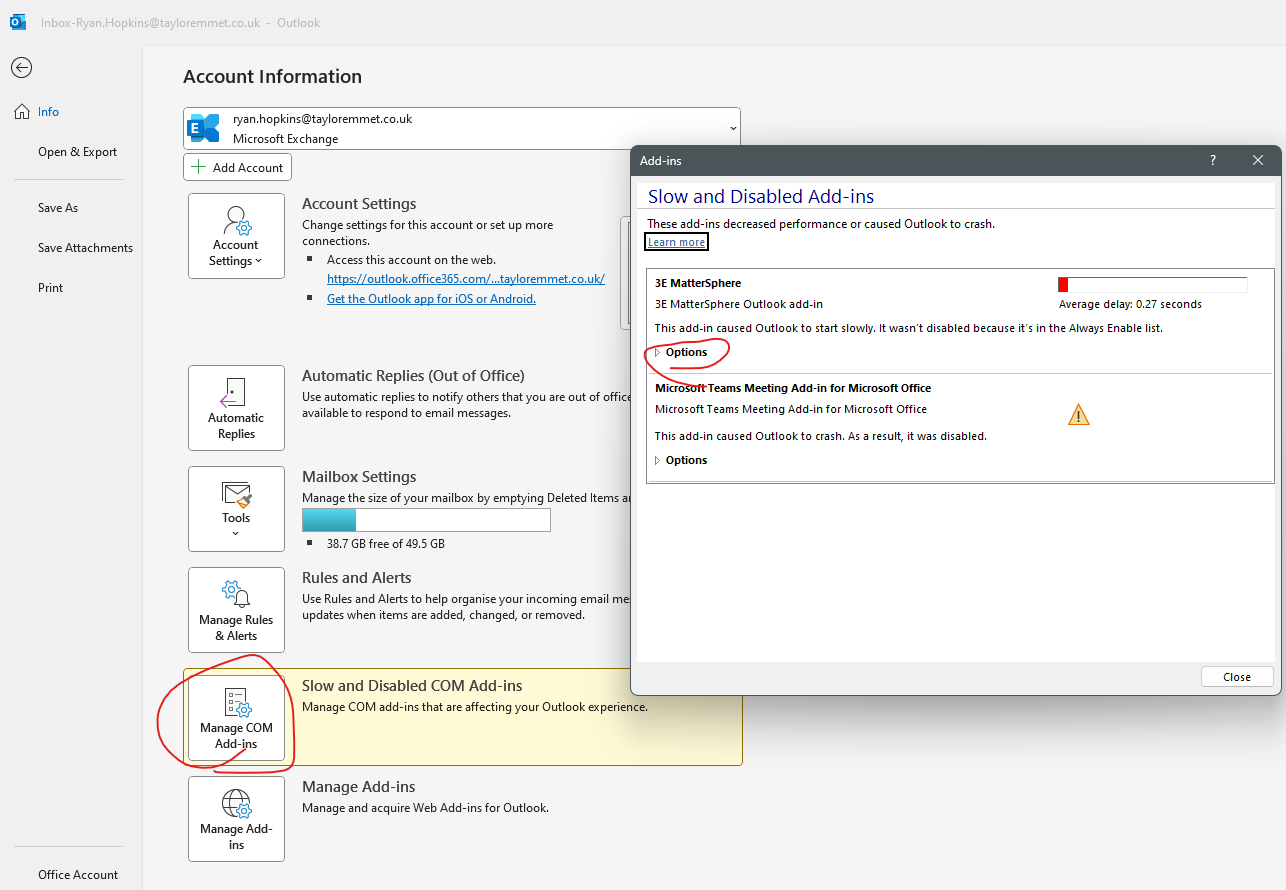
Then you should see a yellow banner for Slow and Disabled COM add-ins - click Manage COM Add-ins
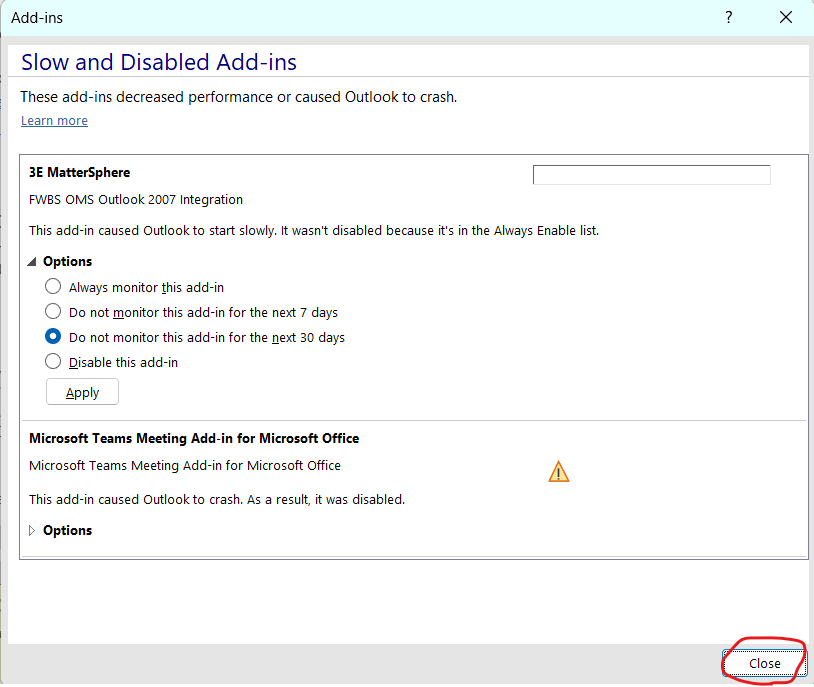
Then Mattersphere will be in the list just click options and enable
Once enabled you will see further options in this menu, just ignore those and close the dialogue box then if you go back the the Outlook Home tab Mattersphere should be enabled again
Was this article helpful?
That’s Great!
Thank you for your feedback
Sorry! We couldn't be helpful
Thank you for your feedback
Feedback sent
We appreciate your effort and will try to fix the article