When you open Microsoft Edge in the morning, you can save your open tabs so they load automatically. This can make it quicker to access the websites you need. These tabs can be different for each person or department.
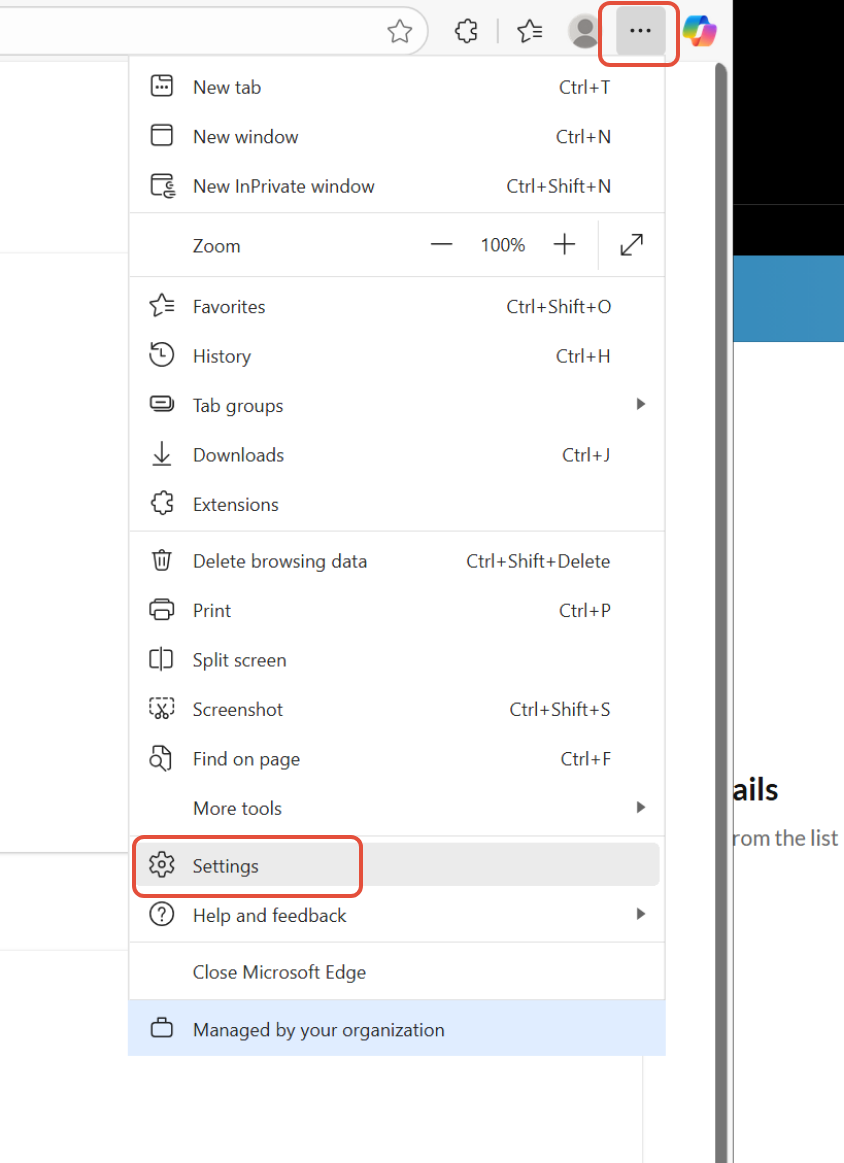
First, open all the tabs you would like to automatically open. Then click the ellipsis (three dots) in the top-right corner and select Settings.
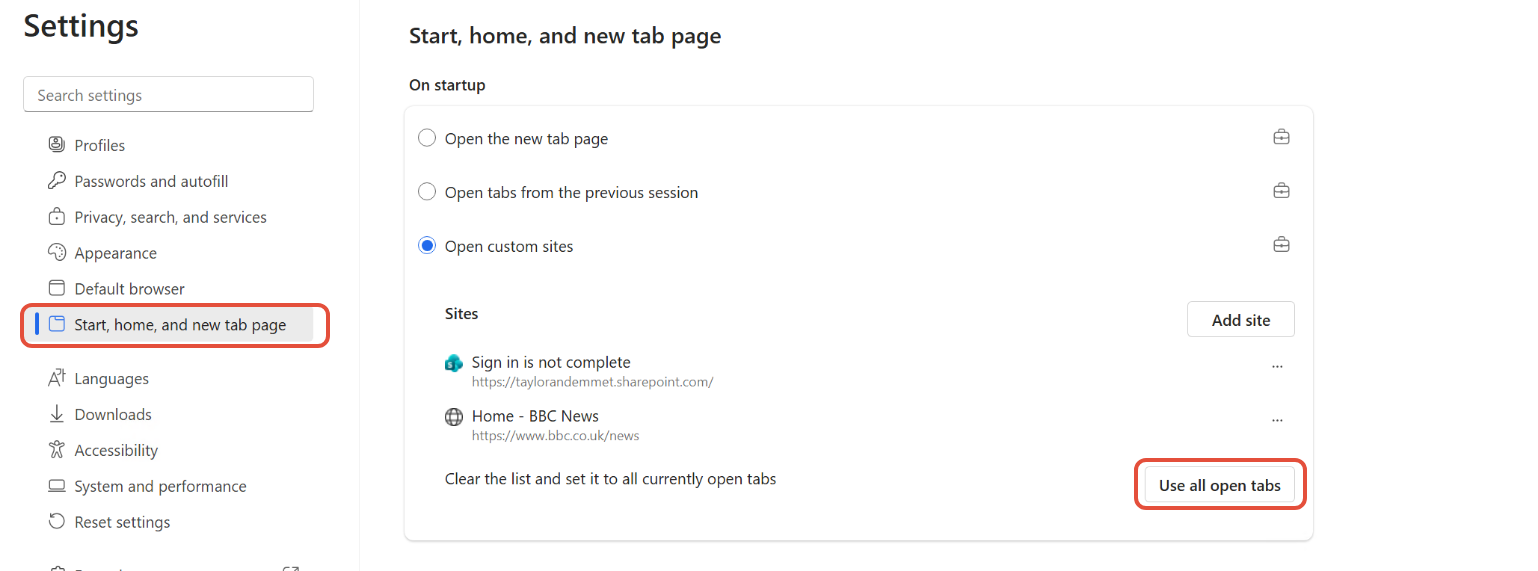
Next, from the left-hand panel, go to Start, home, and new tab page. Click the Use all open tabs button to add them to your startup list.
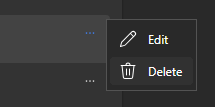
You can also manually add or delete tabs from this list if needed by clicking the ellipsis beside each entry (the intranet is set as default and cannot be removed).
That’s it. The next time you open Edge, all your saved tabs will be restored automatically.
Was this article helpful?
That’s Great!
Thank you for your feedback
Sorry! We couldn't be helpful
Thank you for your feedback
Feedback sent
We appreciate your effort and will try to fix the article